The time blocking app for Mac that counts your hours
ALT puts your tasks on the timeline of your day, between the meetings from your calendars. Every day and week adds up planned hours against the hours you have, so an overloaded Thursday shows up on Monday. A native Mac app, in private beta.
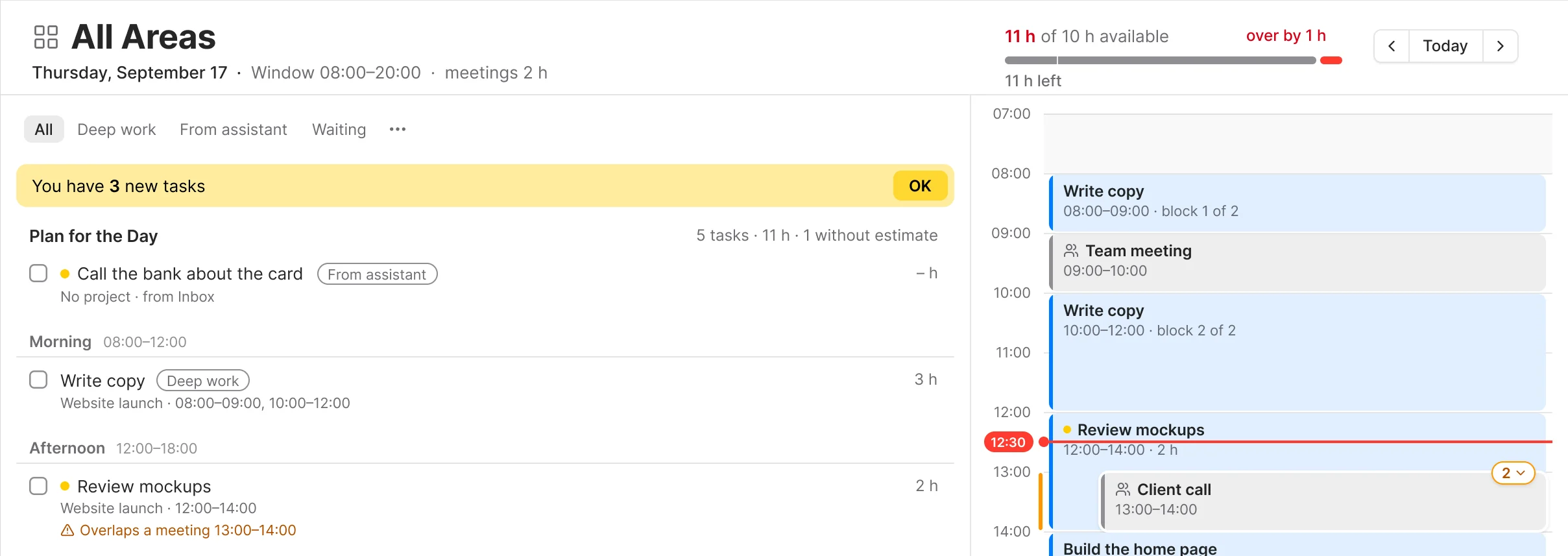
Drag a task onto the timeline. A long task can take an hour before your 9:00 meeting and two hours after it. Each block says which part it is, block 1 of 2 or block 2 of 2, and the task stays one task in its project.
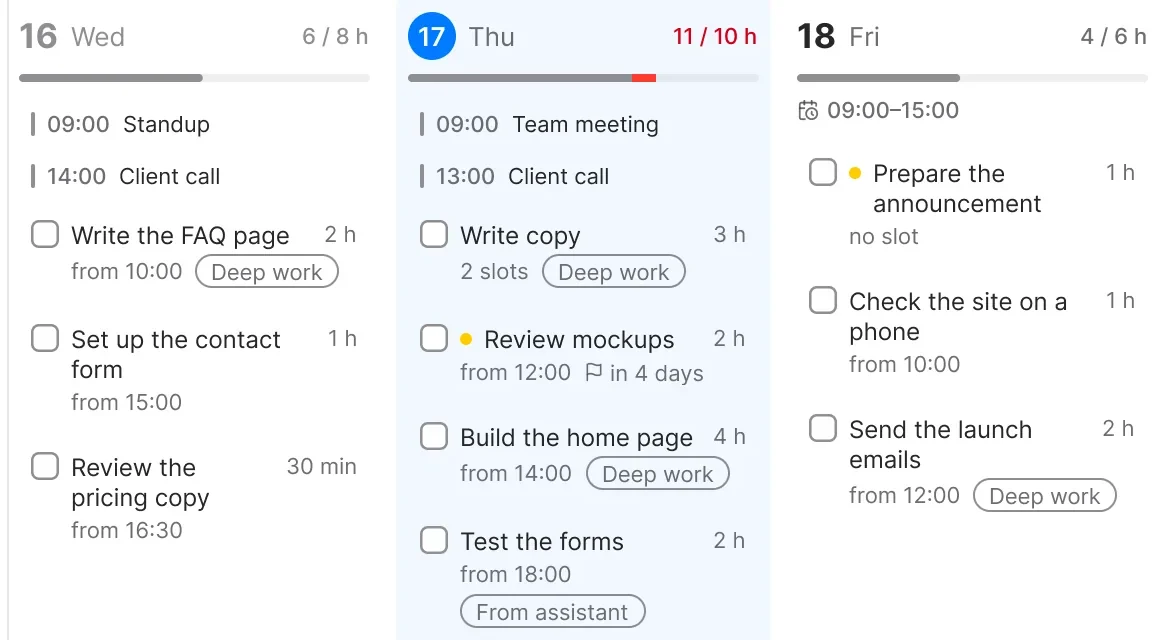
Planned hours against the hours you have.
Each day shows its planned hours of the hours available: your working window minus meetings. When a day or a week runs over, ALT marks it red and says by how much. The month and the year add up the same way.
Meetings on the same timeline.
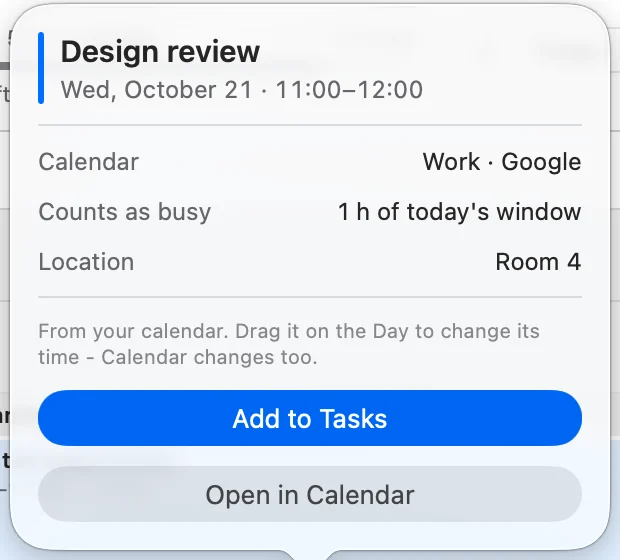
ALT reads the calendars in Apple's Calendar app, including iCloud, Google and Outlook. Drag a meeting on your day, and it moves in your calendar too; ⌘Z puts it back. Need time to prepare? Add to Tasks turns the meeting into a task.
See the time before you drop.
While you drag a task over the day, a dashed slot shows where it will land and for how long, such as 18:00-20:00 · 2 h. Blocks move in 15-minute steps. Drag either edge to change the time, or type it in.
Estimate against actual time.
A finished task shows how long it really took, counted from its time blocks, next to your estimate: 2.3 h · est. 1 h.
A list doesn't tell you if the day fits
"It lets me see how realistic my day looks - often my task list for the day is 12hr+ so I know I need to redistribute."
App Store review of a time blocking planner
"I don't understand why every single Task app out there thinks you only work on a Task once"
Feature request for a goal planner
"I will be wasting much of my productivity hours just setting up my calendar for the week."
App Store review of a daily planner
Assistant
Say it, get the times, tap Apply.
Tell the chat what's on your plate, typed or dictated. It gives each task a time between your meetings, inside your working hours, and shows what that does to the day's hours. Nothing changes until you tap Apply, and Undo puts it back. In the beta, the assistant runs on your own Anthropic, OpenAI or OpenRouter key.
Questions
What is time blocking?
Time blocking means giving each task a time on your day instead of keeping it on a list. In ALT, tasks get blocks on the day's timeline next to your meetings, and the day adds up how many hours they take.
Can one task have several blocks?
Yes. Drag the task onto the timeline again, or use Add Time Slot in its card. Each block is numbered, such as block 1 of 2, and the task stays one task in its project.
Does it work with Google Calendar?
Yes, through Apple's Calendar app on your Mac. Add your Google, iCloud or Outlook account there, and ALT shows those meetings on your day and counts them as busy time. You choose which calendars count. ALT changes a meeting only when you move it on your day. Task blocks stay in ALT for now and don't appear in your calendar.
Which devices does it run on?
Mac with macOS 14 Sonoma or later. iPhone and iPad join the beta in December. There's no sync between devices yet.
More about ALT
See how the assistant plans a day on the home page, or how ALT compares with other planners on Compare.